
Troubleshooting An Inactive SM
Use this guide when the customer is offline, and their equipment is offline as well.
There are three causal possibilities:
- The equipment is not powered on.
- The equipment is out of alignment.
- The parent AP is down.
Click on each of the tabs in order for instructions on troubleshooting. They are listed in the recommended order.
Checking the Parent AP
To check the parent AP, click on ‘More‘ on the SM. Then, navigate to ‘Parent/Child’. You will see the tower appear as follows.
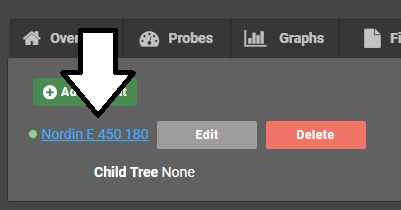
Even if it shows as green, be sure to click on the AP, then directly connect to the AP to ensure that it is online, as the probes sometimes are not up to date.
Checking the Equipment Alignment
To check the equipment alignment, click on ‘More‘ on the SM. Then, navigate to ‘Graphs‘. Once on this page, change the graph to ‘Cambium Canopy SM Signal’, then change the view to see the past 30 days of activity.

If the signal strength degrades, then disappears or becomes intermittent, it must be improved in order to be able to provide service. Below is an example of a signal strength graph of that nature.
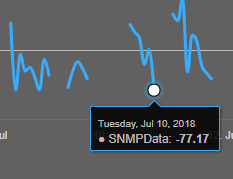
If the graph shows a longer and slower decline, it is likely a case of bloom, i.e., trees blooming in the path of the signal, and will need a remount, possibly with a tripod. By contrast, if it is a short and quick decline, it is more likely just a simple realignment.
Checking for CRC Errors
Click on Statistics and then navigate to ‘Ethernet‘. One on this tab, scroll down to ‘CRC Error‘, if there is a number higher than 0, have the customer unplug their router and reboot the SM. After the radio navigate back to ‘Ethernet‘ and confirm if the number is still incrementing. If the answer is yes, schedule a service call. If they are not, have the customer plug their router back in and see if they increase now. If not you can continue troubleshooting. If yes, suggest a replacement router.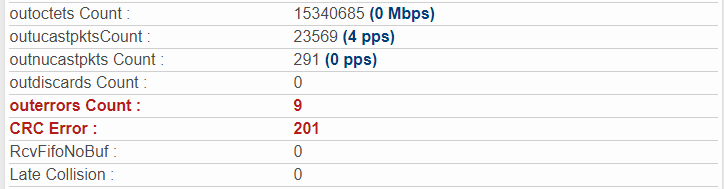
Checking the Customer Equipment
First, ensure the POE (power-over-ethernet) injector is properly configured and powered on. The following images first show the older POE unit, and secondly the newer POE unit.
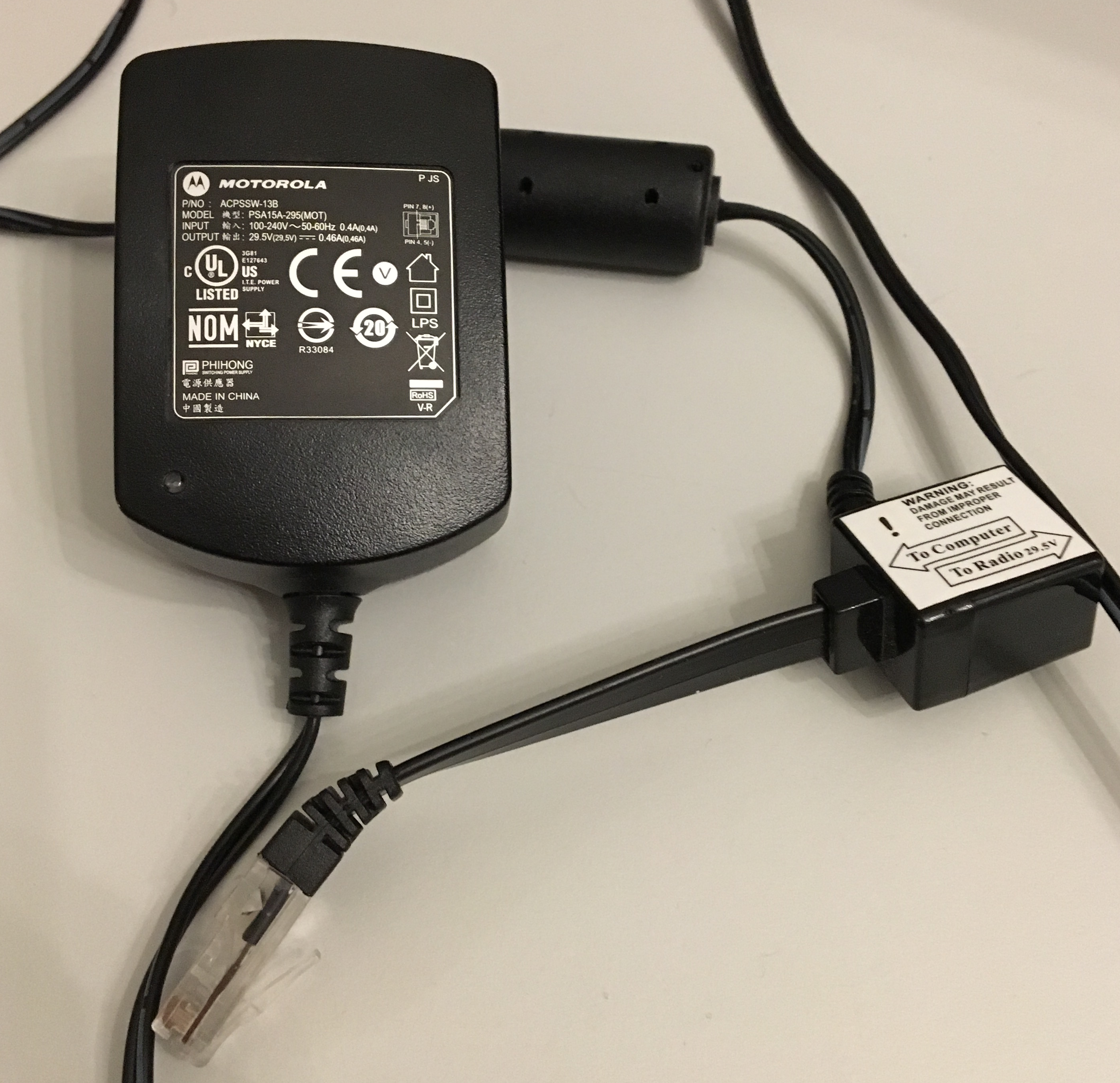
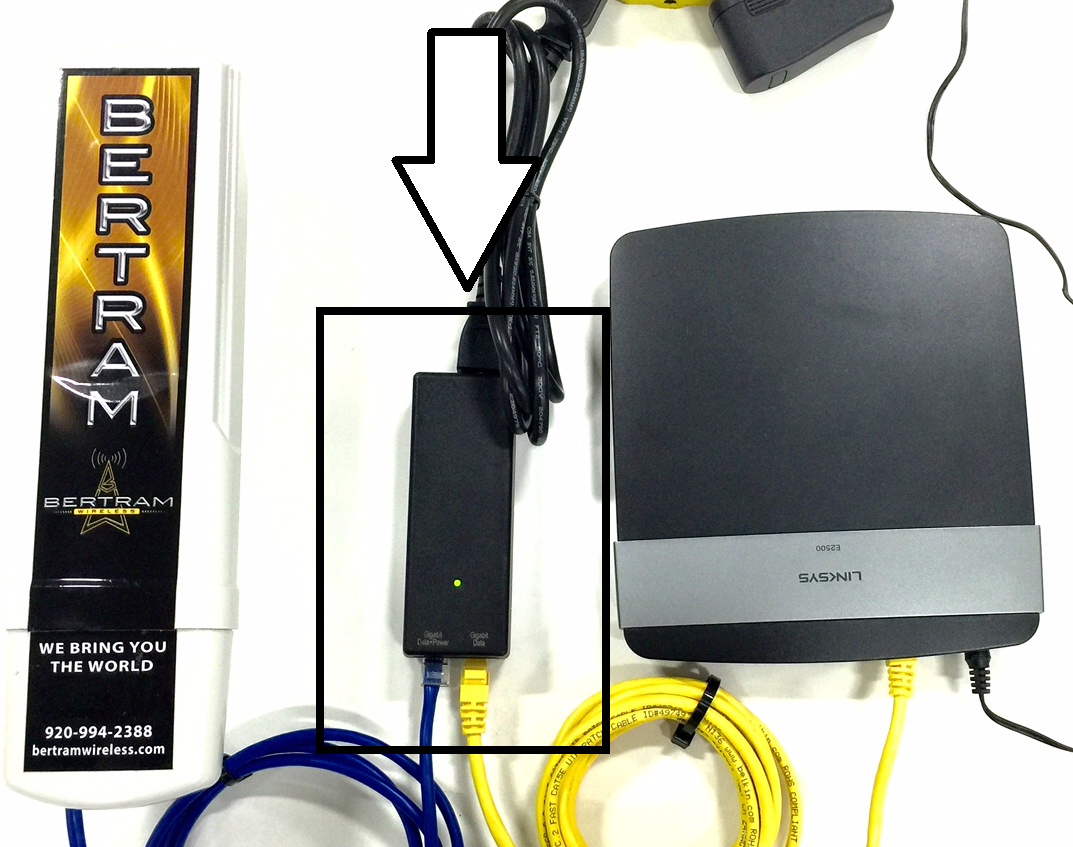
Have the customer confirm that the cable from outside is inserted into the ‘To Radio’ or ‘Gigabit Data + Power’ port, and verify the unit is plugged in and powered online. On the older unit, there will be a green light on the lower left corner of the plug unit, and on the newer unit the green light will be on the unit itself.
If the green light is not powered on, have the customer try plugging the unit into a different power outlet. If the green light remains off, the customer will need a new POE unit. A new POE comes at a cost of 20$, and can optionally be shipped for an additional five. To send it out, make a ticket and transfer it to the relevant party.
Further Steps
If the above was unsuccessful, a direct login can be executed.
To log in directly, have the customer insert the WAN cable directly into their laptop, and navigate to the SM directly. There are two options for finding the equipment address:
a) Open Command Prompt
To open command prompt, open the start menu, and type ‘cmd’. Then, command prompt will appear in the menu, then click to open it (or press ‘enter’.)
b) Run ‘ipconfig’
Run the ‘ipconfig’ command by typing ‘ipconfig’ (without quotes). It will return some results.
c) Get the default gateway
From the results, have the customer get the ‘default gateway’ from the list of results.  d) Open page in web browser
Have the customer go to this web address. They can either copy and paste it into the address bar (note: need to use keyboard shortcuts to copy in the command prompt), or just key it in normally.
If this fails, schedule a service call.
For each of the web addresses below, have the customer navigate to them by entering them in the address bar of a web browser.
192.168.10.1
169.254.1.1
If this is successful, have the customer log in using the normal credentials. Then, have the customer navigate to Tools > AP Evaluation, then ‘Rescan APs’.
Have the customer read you the results, looking at the signal strength and any other information you may want. Proceed according to your discretion.