
1) Connect to the SM
2) Check the signal strength.
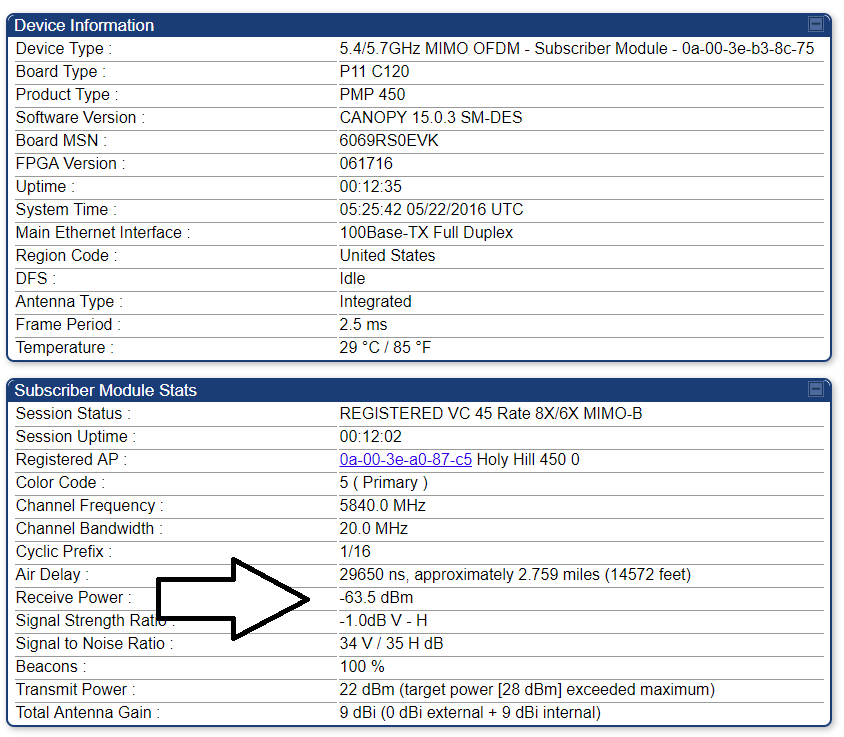
As a general rule of thumb, here is a guide to signal strength.
-60: Excellent
-65: Excellent
-68: Good
-70: Fair
-73: Questionable
-75: Poor
-78: Very Poor
-80: Abominable
3) Run a Link Capacity Test
To run a link capacity test, navigate to Tools > Link Capacity Test. Ensure the test is set to Link Test with Bridging, with a duration of 10 seconds.
After running the test, the results will appear.
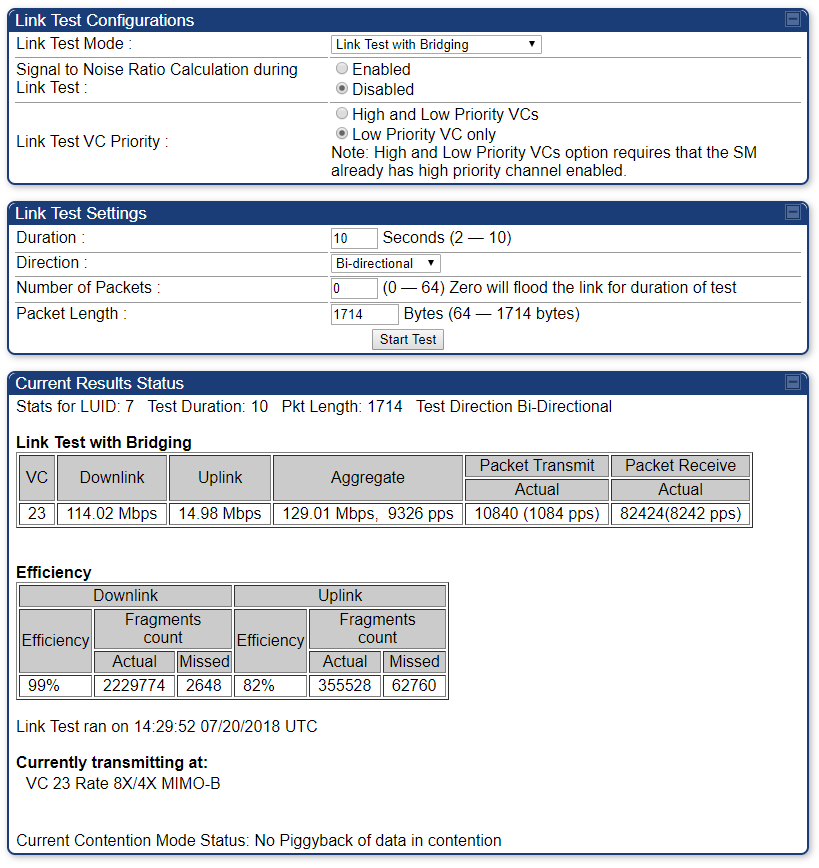
There are three parts to the results of a link capacity test: throughput, efficiency, and MIMO Status.
Throughput:
Throughput measures the actual amount of data coming through the connection. This number should be well in excess of the actual speed of the connection.
Efficiency:
This metric measures the number of packets sent compared to the number expected. In practice, these numbers should be greater than or equal to 85%.
MIMO Status:
MIMO refers to how many simultaneous connections the AP makes with the SM. This metric in itself is not as important as the others, but it should be 8×2 MIMO B or better. See MIMO for more information.
4) Checking NAT Stats
To check the statistics of the NAT, navigate to Statistics > NAT Stats.
The important metric on this page is the ‘Out Of Resources Count’ for the Private NAT Statistics. If you’re not sure where to find this, expand the tab below.
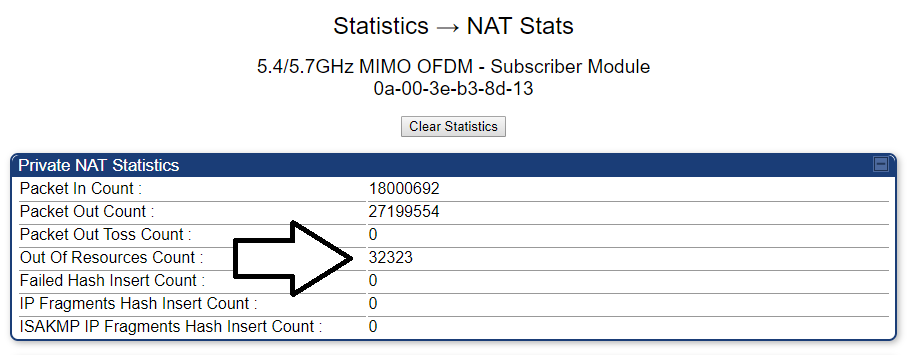
If this number is greater than five hundred, bridge the SM. For instructions on completing this, see Bridging an SM.
5) Checking Session Counts
It is possible for an SM to rapidly connect and disconnect from its parent AP. To check this, navigate to Tools > AP Evaluation.
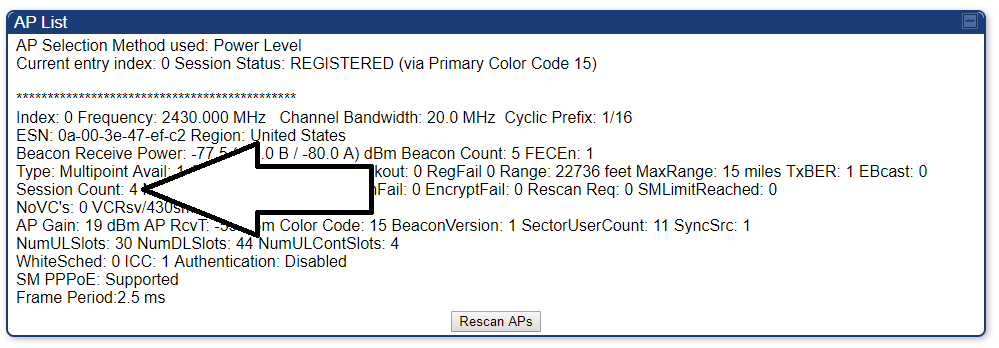
If the ‘Session Count’ is high, it is an indication that the equipment has been disconnecting and reconnecting from its parent AP.
In the event multiple APs are listed, and both have high session counts, the equipment is bouncing between them.
Go to Configuration > Radio, then change AP Selection Method to Power Level.
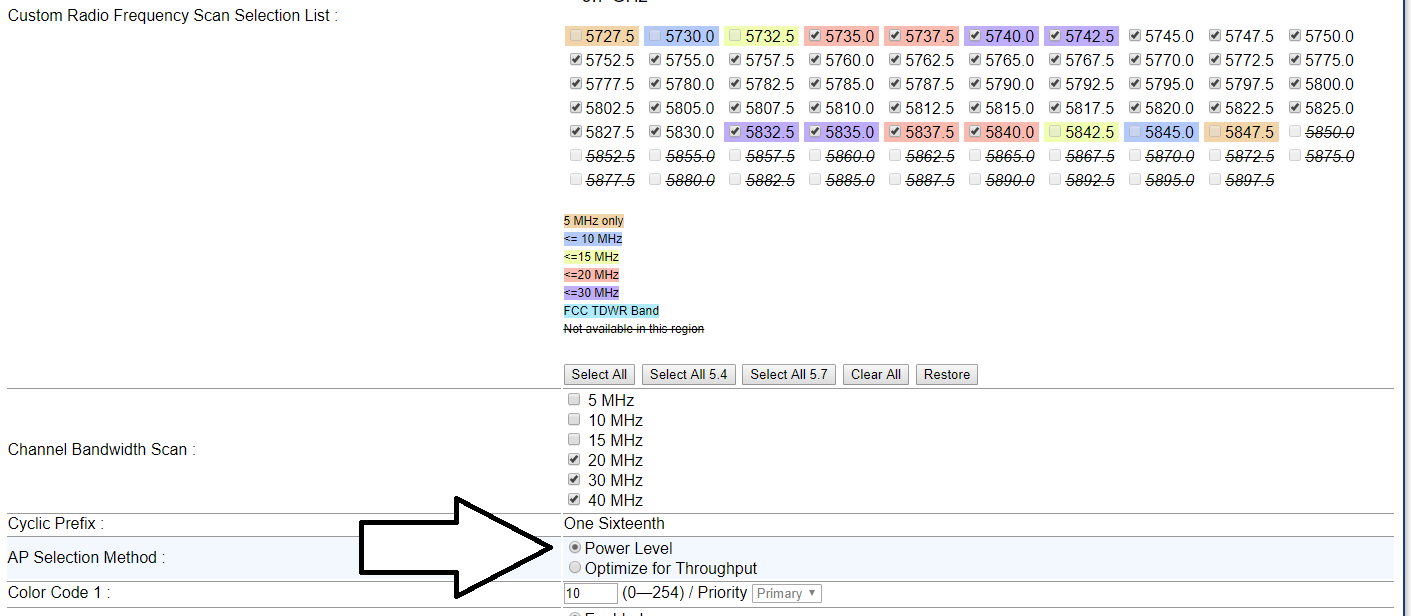
If there is only one AP listed, and the signal strength is adequate, run a Spectrum Analysis to see if electrical interference is the issue.
The spectrum analysis tool will show all electrical signals at certain frequencies detected by the SM. It will return the result in a graphical format. The below is an example of a ‘good’ result, where the two APs are clearly isolated from the background noise.
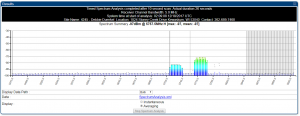
Run the test with a time of 120 seconds. Reference the frequency of the best AP as shown in Tools > AP Evaluation, and look to see if there appears to be other noise in that frequency that could be effecting the service. The image below outlines some common sources of interference.

Have the customer try to remove the offending device (unplugging a router, etc) to see if the situation improves.
If the service improves after unplugging their router, have the customer change the wireless channel on their router. I would advise using our remote assistance package to do this for them.
If the service does not improve, and they are unable to remedy the situation, schedule a service call to have a technician swap the equipment out to avoid the interference.
After doing this, rerun the AP Evaluation.
6) Checking Ethernet Statistics
To check the quality of the cable, navigate to Statistics > Ethernet.
The image below indicates the important areas of the statistics. 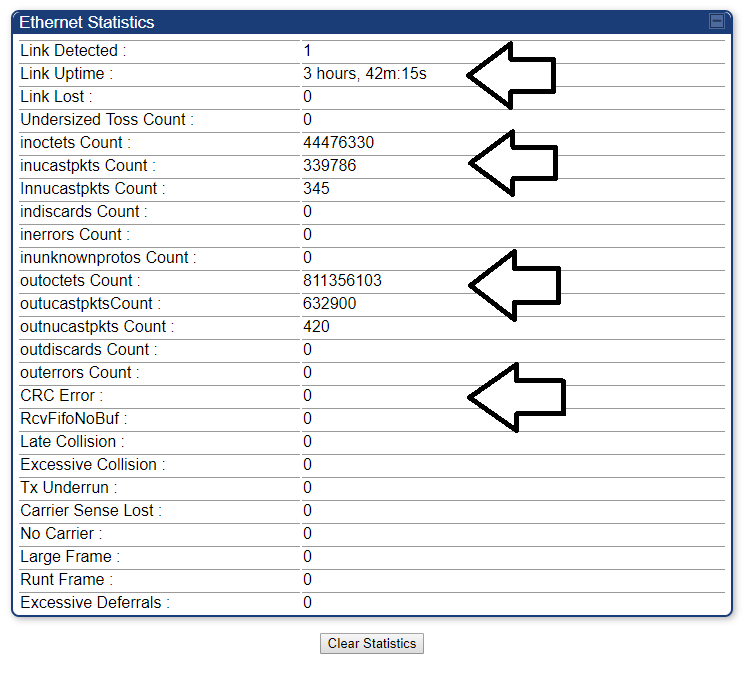
Link Detected, Link Uptime, Link Lost: These metrics refer to how many times a device has been plugged into the SM, and how long that connection has lasted. If you notice this is climbing as the router connects and disconnects, have the customer bypass the router, and see if the issue persists.
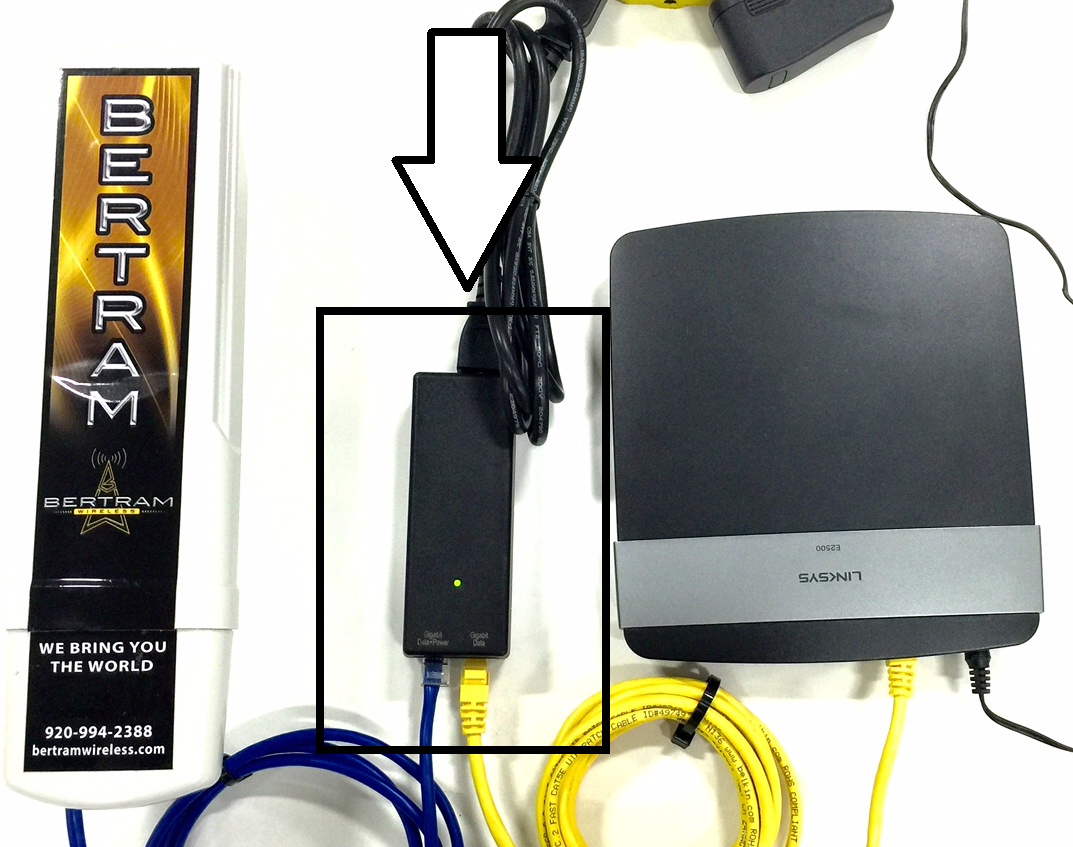
To ‘bypass’ a customer’s router, have them unplug the line from the customer router (the ‘main internet cable’) and plug it directly into a laptop or desktop.
inoctets Count: This refers to how many octets (small pieces of information) have been uploaded through the SM. These numbers will be in or over six figures when operating properly.
outoctets Count: This refers to how many octets have been downloaded through the SM. Look at this to see if traffic is running through the SM. These numbers will be in or over six figures when operating properly.
CRC Error, Carrier Sense Lost: Errors here indicate an issue with the cabling. Some (less than 500) errors are normal, but larger numbers indicate the residence needs to be re cabled. The cost of the labor can be comp’d, but the cable will be charged at 50 cents per foot.
7) Testing the customer’s router
After completing the above shooting, it is highly likely that the issue is the customer’s router. To test this, we will ‘bypass’ a customer’s router, and have them use the internet to see if the issue persists.
To ‘bypass’ a customer’s router, have them unplug the line from the customer router (the ‘main internet cable’) and plug it directly into a laptop or desktop.
If the issue the customer describes is more on/off over the course of hours, and the customer doesn’t want to leave the computer plugged in that long and test it, let them know that you couldn’t see anything going on on our side, and that it is most likely their router, and that if a new router does not fix it, they should give us a call back and more drastic steps will be taken.
If the issue persists, consult a more senior technician.