
Wireless Procedure (Optic Loop):
- Open customers SM
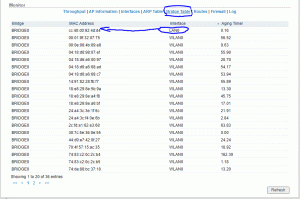
- Select Bridging Table at the bottom of the Main Page. Copy the MAC Address that corresponds with LAN0.
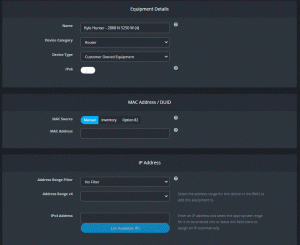
3. On the customers main page in Powercode, under equipment Select “Add”.
- Select Device Category>Router
- Select Device Type> Customer Owned Equipment
4. Under MAC Address/DUID, Paste the MAC Address that was copied from the SM.
5. IP Address Configuration:
- Select Address Range Filter: Select the correct range filter to ensure you have the correct range.
- Select “Address Range v4”: Select the correct Customer DHCP range for that customers location. NOTE: You can check the SM to ensure the proper Range filter as well as the old router if it is still on the account.
- Select “IPv4 Address”. Select one of the addresses from the drop down.
The following image shows Equipment Details:
Reach out to a member of the Management team for additional questions.