
Smartermail Knowledge Base
This will cover any and all bases from contact categories to spam white lists.
https://portal.smartertools.com/kb/search.aspx?search=contacts
Transferring emails from outlook to Gmail:
https://tools.google.com/dlpage/outlookmigration
Changing Email Passwords
To reset an email password, follow the following procedure.
1) Open the customer’s account in powercode, and click on ‘Services’.
2) Click on the ‘Change Password’ text next to the email in question. 
If the customer’s email is not in powercode, it must be added to powercode before you will be able to change the password.
1) Open the customer’s account, and click on the ‘Services’ tab.
2) Click on the large green button with text reading ‘Add Email Account’.
Customer Running Out Of Space
Mail accounts come with anywhere from 50 to 100 MB of space, and there’s no way to increase this. The only way to get more space is to delete old emails.
There are two options here; going into the user’s account yourself and deleting spam emails, or guiding the user through doing it themselves. Regardless of which path you choose, follow the steps below for deleting email.
1) Determine what to delete.
Find some email that is common, and isn’t needed anymore. Slack will be the example used for the purposes of this.
2) Select all emails.
To select all emails, click ‘Select’, then click it again (it will expand to become ‘Selected’). 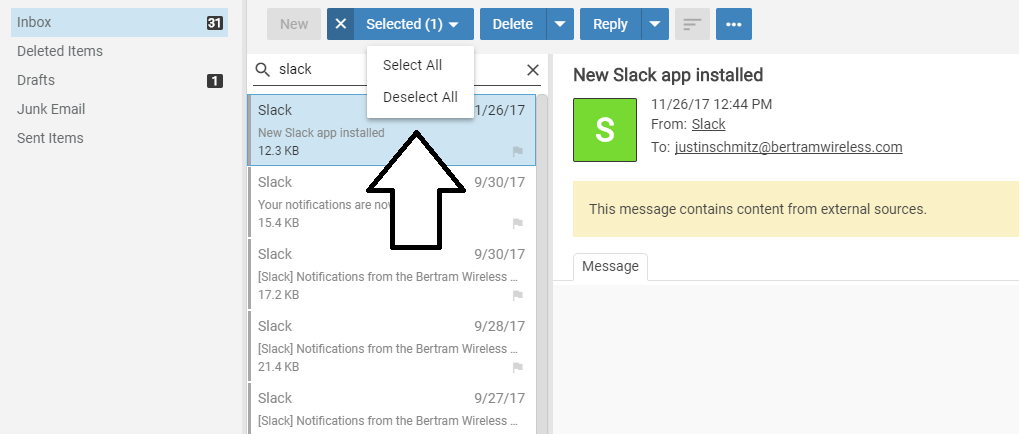
2a) Manually Deselecting Emails
To manually deselect some emails, hold the left control key, then click on the email that you want to save, and it will turn white (be deselected) while preserving the previous selection.
3) Deleting the emails.
Once the emails are selected, click ‘Delete’, and the emails will be deleted.
4) Deleting the emails, continued.
The emails are preserved after deletion by default in the ‘Deleted Items’ folder. 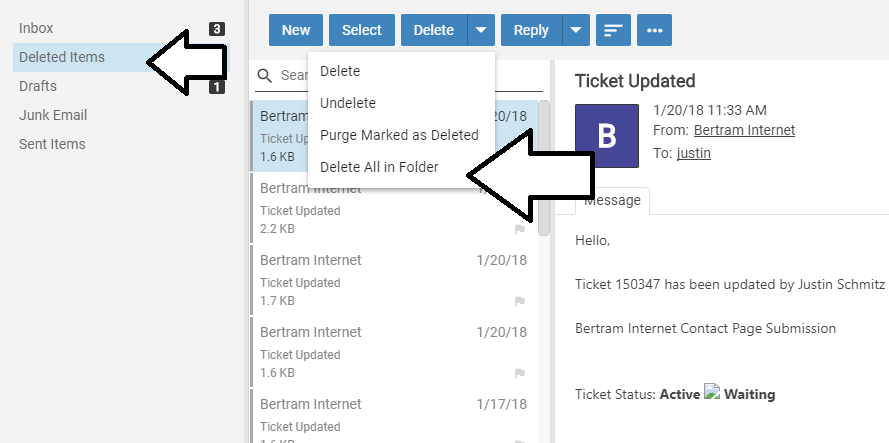
Email No Longer Working
If the user is using SmarterMail on the web, and is using Safari or Internet Explorer, and they are not able to log on:
Have them download a new browser (Chrome or Firefox) and log in using that. This is a known Smartermail problem, and there is nothing we can do about it.
If the user is using Smartermail through an application such as Outlook, the mail app on their phone or tablet, Windows Live Mail, or similar:
Have the user go through the process of re-adding the email service to their mail app. You can find the information for the mail settings server here.
Articles to add:
Using ‘Trusted Senders’
Using ‘Categories’