
No Internet, Active SM
Use this guide when a customer does not have internet, but their equipment can be accessed.
1) Log In to the SM.
2) Check Ethernet Link Status
To check the link status, view the homepage of the SM, and look at the ‘Ethernet Interface’ row. 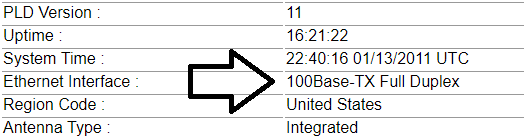
If this shows ‘No Link’ or ’10Base-T Full Duplex’, bypass the router and attempt connectivity.
To ‘bypass’ a customer’s router, have them unplug the line from the customer router (the ‘main internet cable’) and plug it directly into a laptop or desktop.
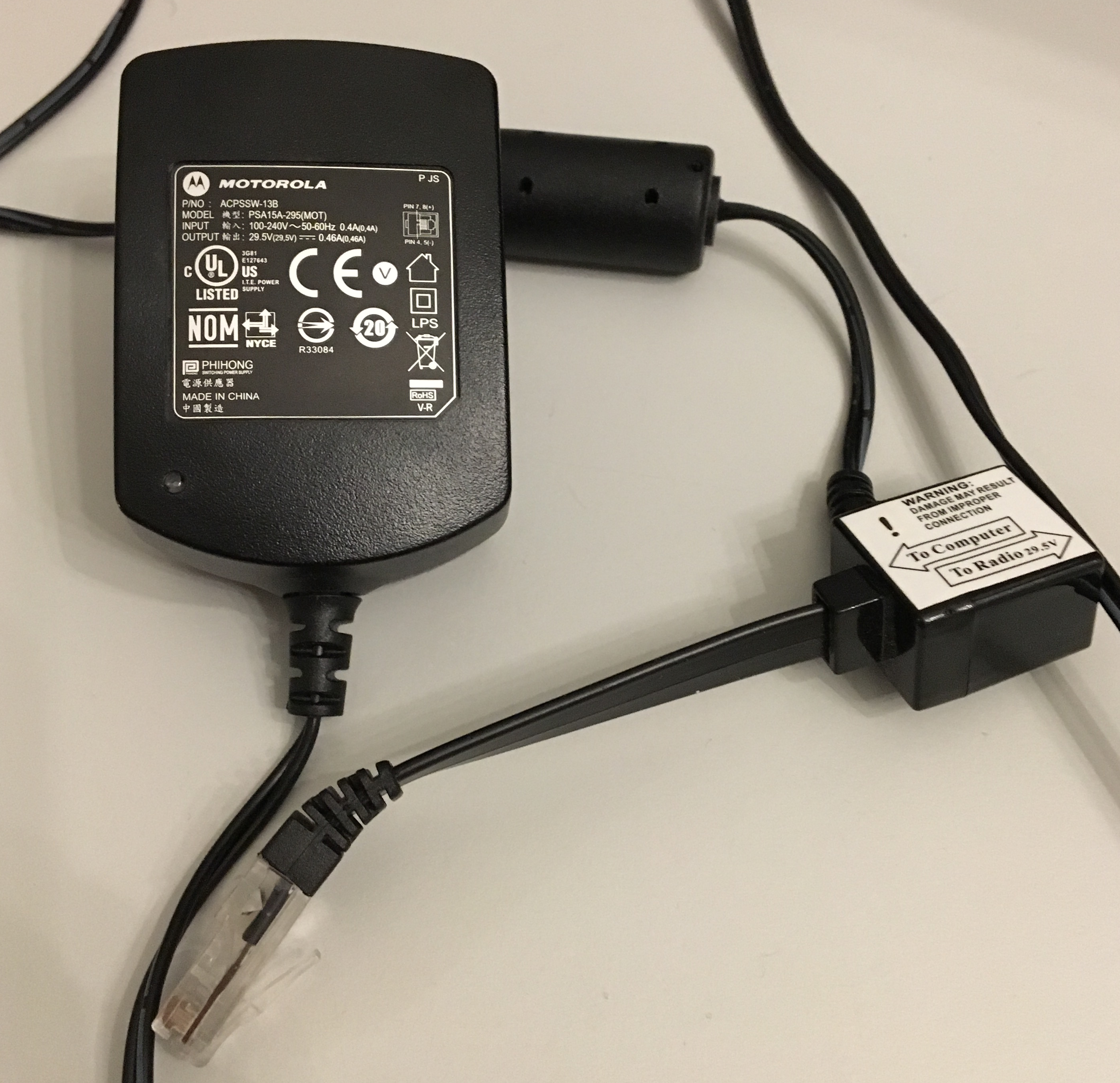
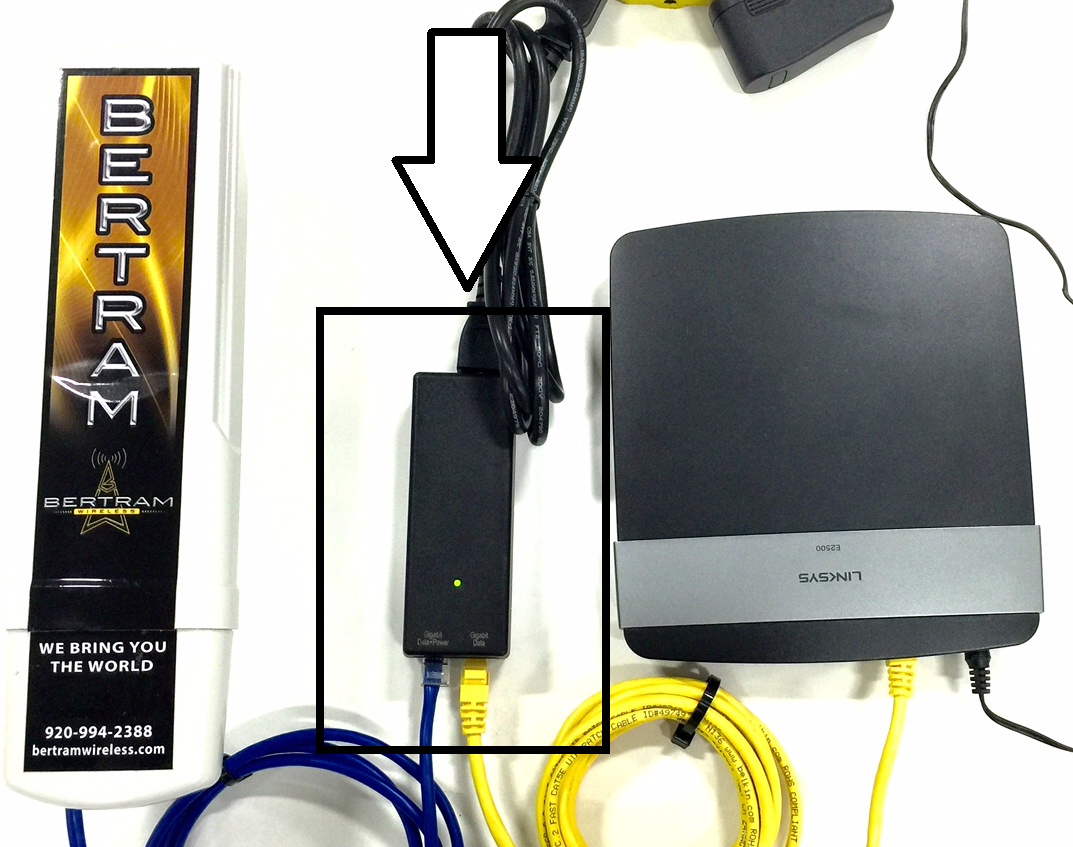
Once the customer has bypassed their router, ensure the Ethernet link status has changed to ‘100Base-TX Full Duplex’, continue the guide. If it continues showing ‘No Link’ or ’10Base-T Full Duplex’, schedule a service call, and have the residence recabled.
If this shows ‘100Base-TX Full Duplex’, continue reading below.
3) Checking DHCP Status
To check the status of the NAT DHCP, navigate to Statistics > NAT DHCP.
Once on the NAT DHCP page, view the statistics.
For a detailed explanation of the NAT DHCP page, see: NAT DHCP.
First, check DHCP Client Statistics. Ensure that the statistics show a Assigned IP, Subnet Mask, and Default Gateway.
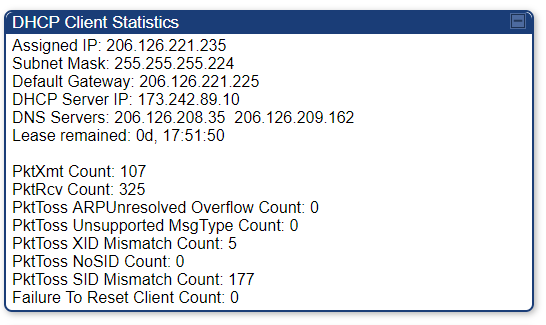
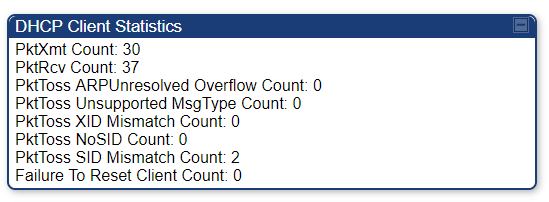
If you see there is no IP address given, navigate to Home > Network Interface, then Release and Renew DHCP.
If this does not fix the issue, ask Eric or a more senior technician.
Next, check DHCP Server Statistics. Ensure there is a ‘Hardware Address’ shown, along with a time remaining/state that is less than 30 days. Below is an example of a ‘good’ result.
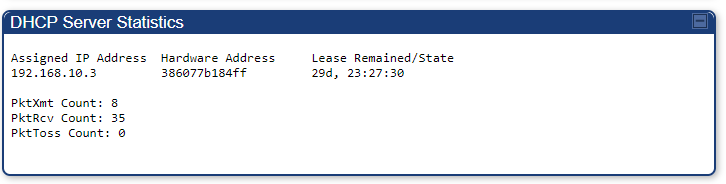
- If the Lease Remained/State shows Used, reboot the equipment, and then have the customer reboot their router, and see if the issue persists. As a precautionary measure, also check Ethernet Statistics. If there are no significant errors found and rebooting did not resolve the issues, have the customer bypass their router.
- If no devices are appearing in the menu, the customer may have their router plugged in wrong. Have them make sure the cable going to the radio (“main internet cable”) is plugged into the WAN, or Internet, port on their router, then reboot their router. After they reboot their router, you should see it appear in the menu.If after checking the connections and rebooting the router still is not appearing in the menu, have the customer try bypassing the router with a laptop or other device. If this still does not work, schedule a service call.
- If the Lease Remained/State is over 30 days and continues looping above that mark, first check Ethernet Statistics. If there are no significant errors found, have the customer bypass their router.If this works, their router is no longer accepting the DHCP address given by the SM, and they will need a new router.Note: It is also possible that there is a network-wide issue with DHCP going on causing issues. If you suspect this to be the case and it has not been previously reported, still bypass to a laptop to see if the issue persists. If it does, complain to Eric.
- If you see multiple devices appearing in the NAT DHCP statistics, below are the following possibilities.
- Their router is configured incorrectly
If they had their router set to Bridge Mode, it will form a bridge, thus causing every local host (device) on their network to individually connect to the SM. - Their router is dying
In a particularly strange failure mode, some routers will change their MAC address as they die. - They have had multiple devices plugged in
If they have tried plugging in other devices to see if it works, all of those devices’ addresses will show up in the NAT DHCP window.
- Their router is configured incorrectly
Next, check the NAT Stats. To do this, navigate to Statistics > NAT Stats.
Once on this page, check the ‘Out Of Resources’ count for the Private NAT Statistics. 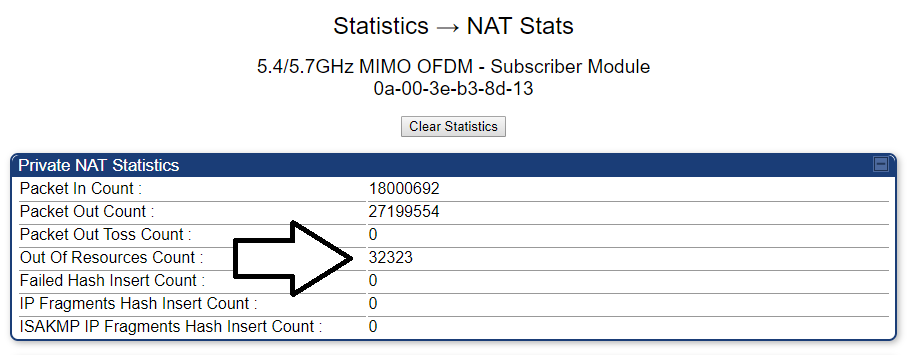
If this number is larger than 1,000, bridge the SM. For instructions on bridging an SM, see Bridging an SM.
After bridging, if there is still no connection, bypass the router, and set the router’s MAC address accordingly in powercode.
If there is no connection at this point, consult a more senior technician.