Process for printing out POE shipping labels for NOC employees.
NOTE: IF SHIPPING A POE TO A CUSTOMER MAKE SURE TO CHARGE THE CUSTOMER 25$ ON THEIR ACCOUNT.
Login Credentials:
Username: purchasing@bertramwireless.com
Password: Plut0plut0?
- Go to https://app.shippingeasy.com
- Login using above credentials.
- Select “Create Label” on the left hand side and then “New Label”.
- The picture below shows the information needed for the label. Adjust the first and last name, the physical address, phone number, and email as needed for the customer.
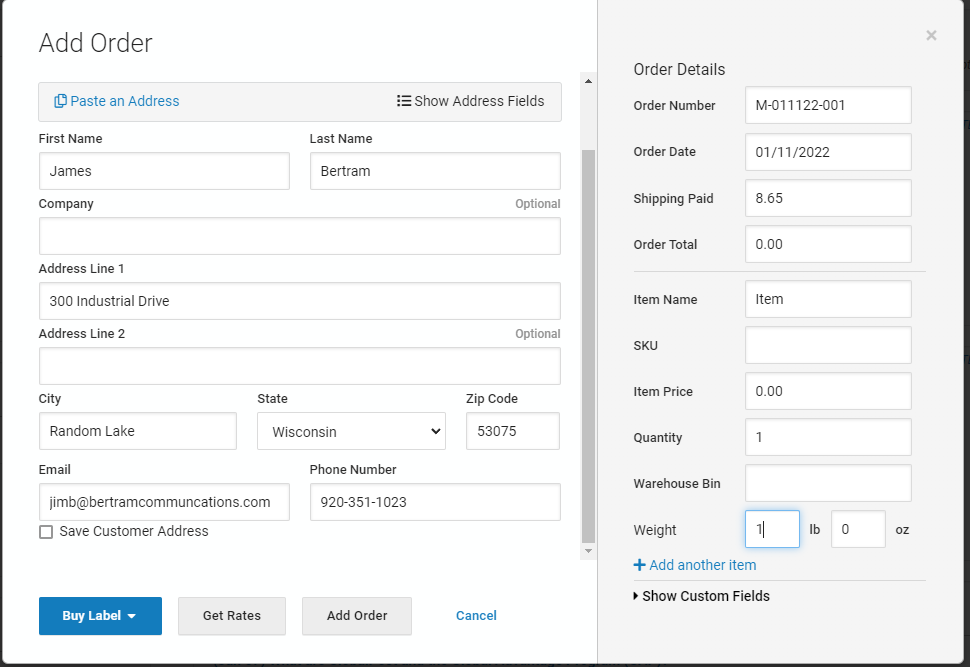
- Shipping paid will be 8.65$ (This number may adjust depending on the companies prices).
- Weight should always be 1 lbs.
- Select “Buy Label”. A pop up will show with different selections. Always select “Small Flat Rate Box”.
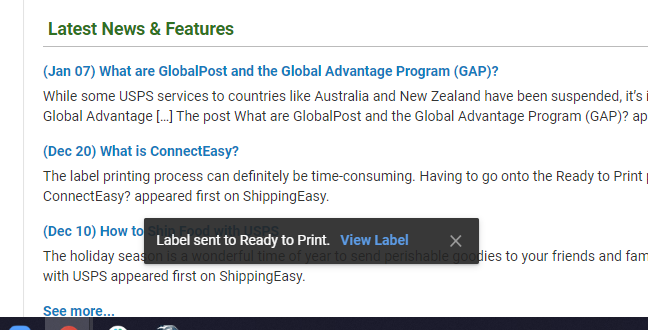
- Once completed you should see a pop like the picture below:
- Select “View Label” and then print label.