
This process has been written to guide technicians to completing monthly Robocalls for delinquent customers.
- Proceed to this website. https://www.callfire.com/
- Use the following log in information
- tim.wright@bertramcommunications.com
- BWPassw0rd!123
- Select “Create”.
- Select “Send an interactive voice call”.
- Select “Advanced Voice”.
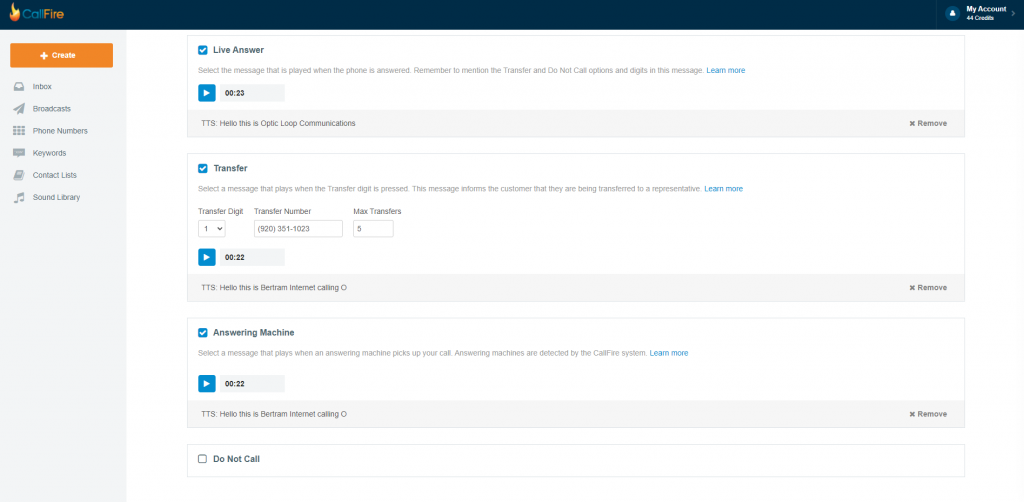
- Select “Live Message”>Select the voice file for the company you are robocalling. ENSURE IT IS THE PROPER VOICE FILE.
- Ensure “Transfer” is selected. Then type in the phone number for the company you are calling from. Then select the voice message option “Transferring you to a live agent now”. (Bertram, Optic Loop, XL Broadband). For Max Transfers.
- Ensure “Answering Machine” is checked and the right companies message is selected. Listen to the message if you are unsure if which one you selected.
- Uncheck “Do Not Call”. (We have not used this yet within our network)
- Select “Next” to continue to the next page.
NOTE: Below is a screen shot of the main configuration page.
 Next, we need to add the ROBOCALL Delinquent file to the Robocaller. Log into Powercode>Reports. Each company will have different names for the reports. You will need to export these reports and then save it as a .CSV
- Optic Loop- “Accounts with Balance Due”
- Bertram Internet- “Delinquent on Date” (NOTE: AFTER EXPORTING BERTRAMS REPORT YOU MUST GO THROUGH AND DELETE ANY BALANCE LESS THAN 5$)
- XL Broadband- “Robocall- About to go Delinquent”.
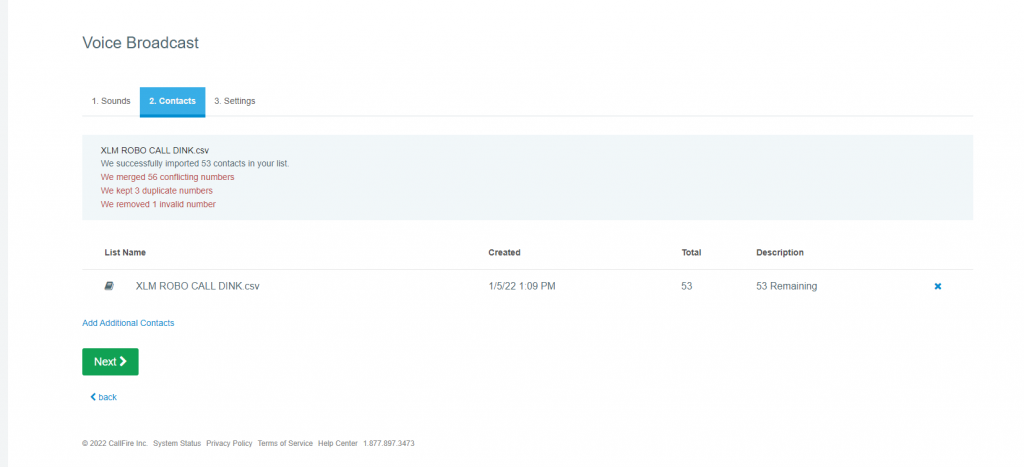
- Select “Export Data”, ensure it is saved as a .CSV. Robocaller will not accept any other type of file extension. Below is a picture of the page. Some errors and duplicate numbers are normal. Ensure that the description number is close to what the report showed. Otherwise, you may have an issue with the file.
- Select “Next”.
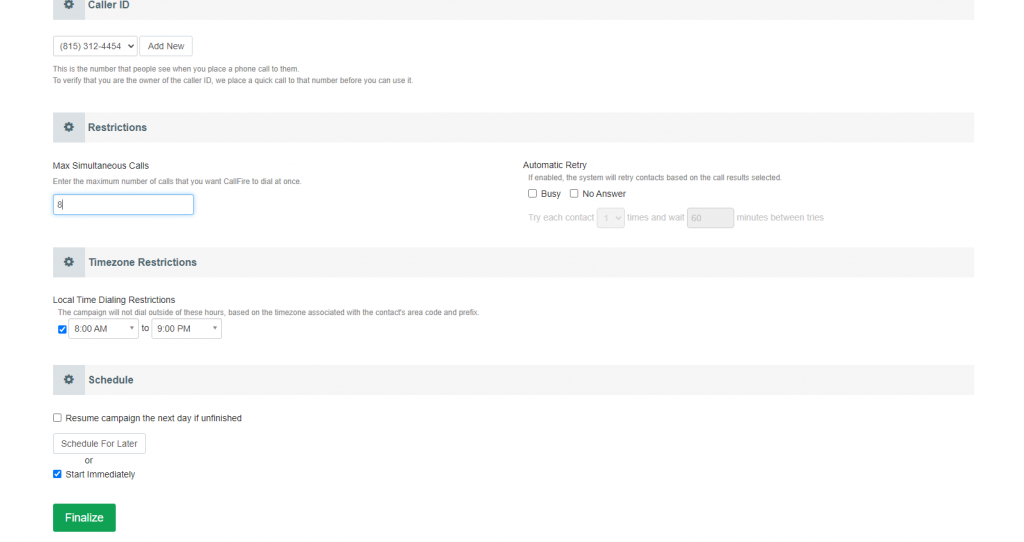
- Under “Caller ID”, Ensure you have the correct companies phone number.
- Bertram – 920-351-1023
- Optic Loop- 801-737-1900
- XL Broadband – 815-312-4454
- Under “Max Simultaneous Calls”. Type in 8. This is how many calls will get transferred through at one time. (Adjust this number depending on how many phone techs we have at the time).
- Under “Schedule” select “Start Immediately”. Rarely do we schedule the Robocaller ahead of time. Below is a picture of the final config screen. Once you have double checked all your settings, Click finalize, and the robocaller will start running.
**ANY QUESTIONS OR CONCERNS CONTACT ELLIOT OR MARK**