
Transferring service to a new resident:
The procedure outlined below is the procedure to follow in the event that a customer has sold their house to somebody who will be taking over service at the location.
Procedure:
Account Setup
Set up the new customer a new lead account per normal procedure, including their name, phone number, email address, physical address, and any other needed information.
Monthly Plans
1) Talk to the customer and outline their options as far as plans go, and the prices of those plans. See: Pricing Cheat Sheet Bertram Wireless Pricing Sheet 2024
2) To add the service, navigate to the ‘Services’ tab, then click ‘Add Service’. 
3) In the menu that appears, select the customer’s new plan from the ‘Monthly Internet’ section.
4) Additionally, add the ‘Protection Plan Lite for $5.00 or Protection Plan Elite for $9.95’ monthly service from the ‘Monthly’ tab.You can view what those plans cover on this document: 2024.05.14 Costs of Services
Transferring Equipment
1) Copy the account number of the new account.
2) Click ‘More’ on the CPE in powercode. Do the same process for the customer router.

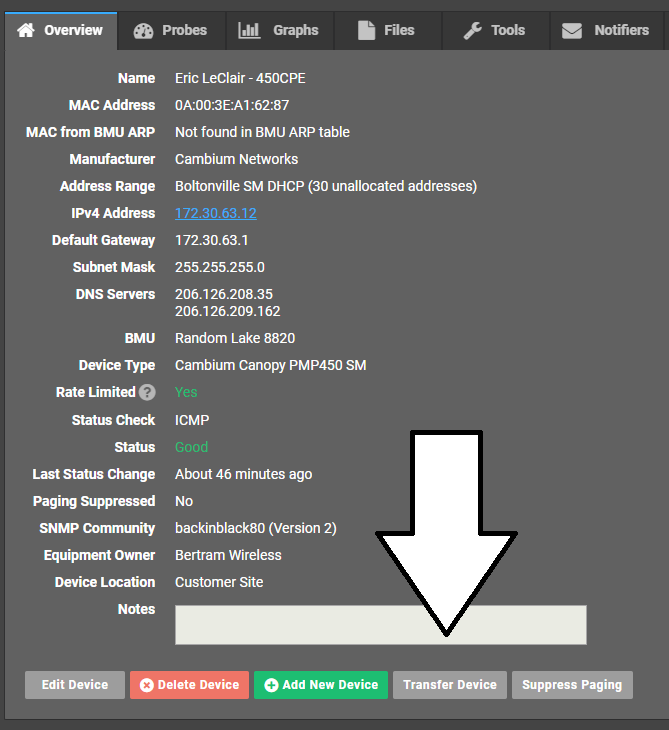
3) Click ‘Transfer Device’ in the menu that shows up.
4) Punch the new customer ID into the menu that appears, then press “Save”.
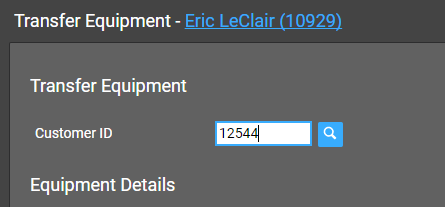
Once you’ve entered the new customer ID here, press “Save”.
Be sure to complete the same process for the customer’s router and set the previous owners account to ‘Close Account on Next Billing Day.’
Contract Options
The new customer has two options for the contract and costs:
The customer gets no contract when taking over service, but is subject to a $10.00 fee.
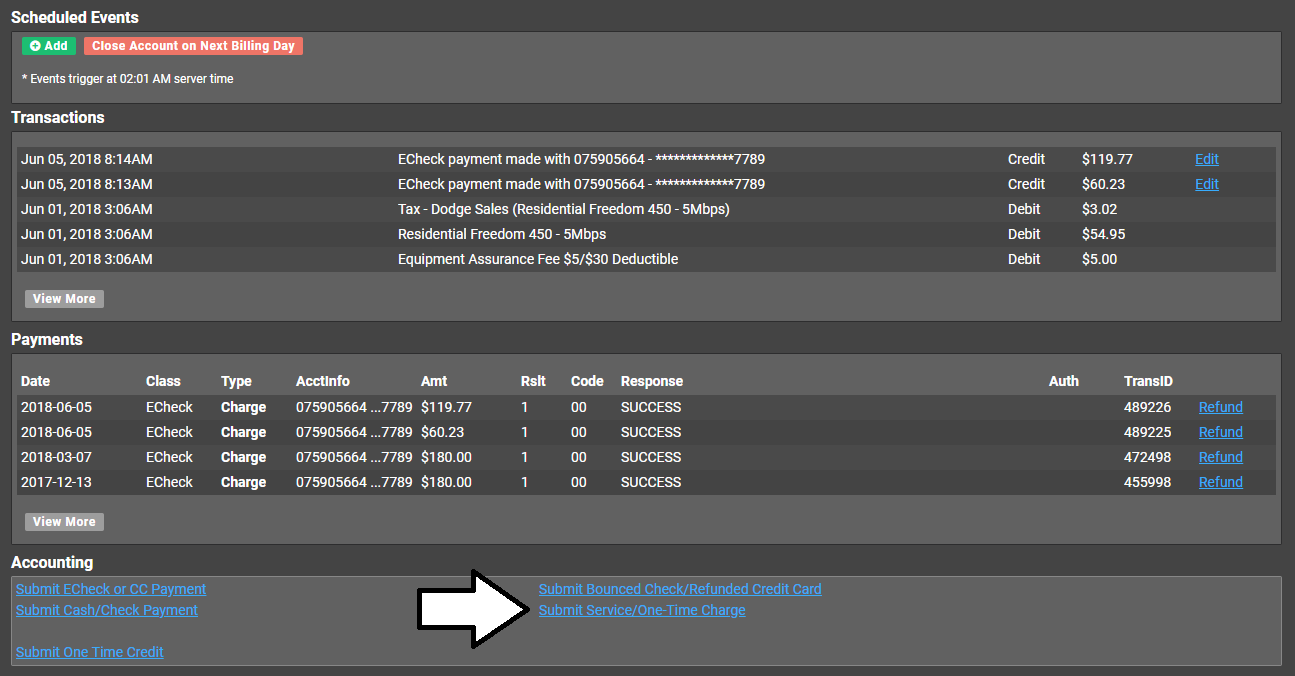
To add the fees to their account, go to the ‘Billing’ tab, then click on ‘Submit Service / One Time Charge’. Add the $10.00 Time Rental Fee.
Next, click on ‘Change Status’ on customer’s page, then set them to Active. This will turn on their service, as well as add a charge to their account equal to the prorated remainder of the month.
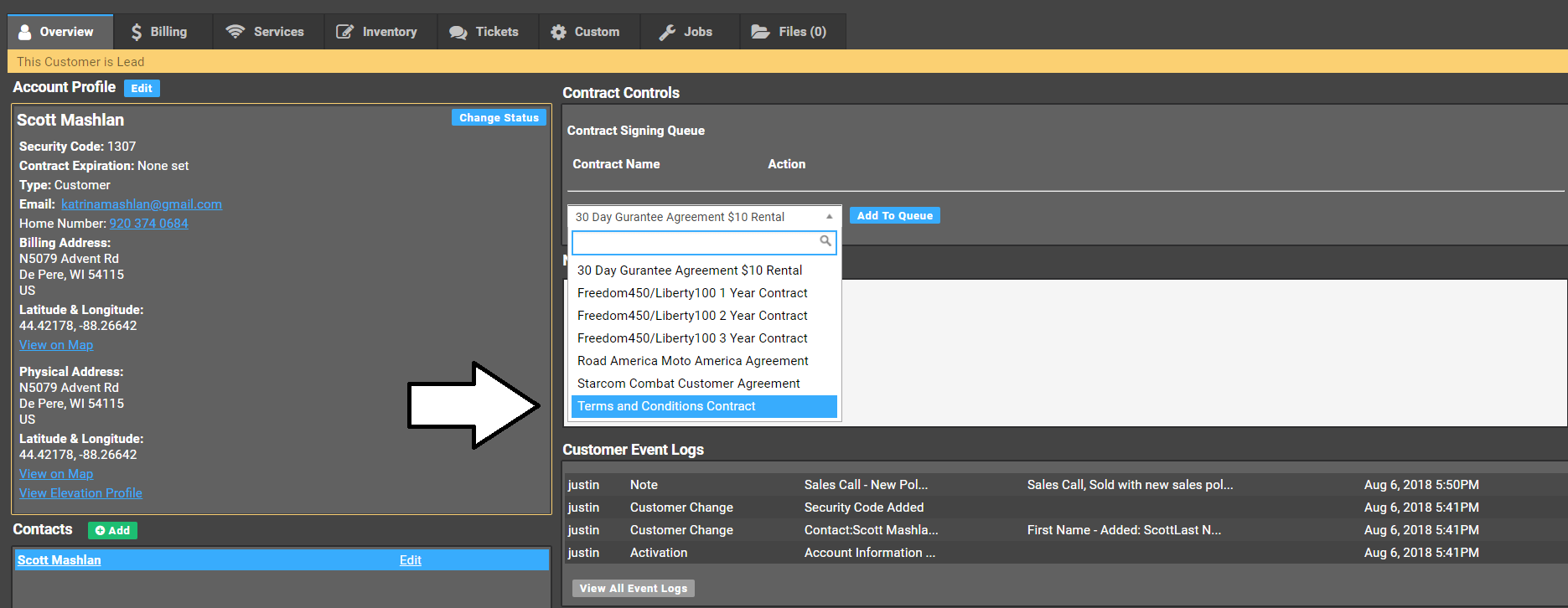
After this, add the Terms and Conditions contract. You can find the contract controls on the ‘Overview’ tab. This is a mandatory agreement for all customers, and is not a contract – it simply protects us from liability.
Before having the customer sign the contract, first set them up with a customer portal login. To do this, click on ‘Edit’ for the contact on the account highlighted in blue.
Once on that page, scroll down to find ‘Customer Portal Access Info’. There you will find the username, but you must set the password to a generic password for the customer use to login, “House123!” is one example.
After adding the Terms and Conditions Contract to the contract signing queue, have the customer navigate to https://billing.gobertram.com
After this, add a credit card and process the balance on the account. If the customer would like to use an electronic checking account, direct them to the customer portal, accessible at https://billing.gobertram.com.
After the contract is signed, the transfer is complete.